Guide · 3 steps
Add a reaction to each post
After the bot publishes a post, it adds one reaction that you choose. Readers can then react with one tap.
Step 1
Open the setting
Open Channels, press Edit on a channel, open the Publishing tab and find Automatic reaction.
The setting is off until you choose an emoji.

Step 2
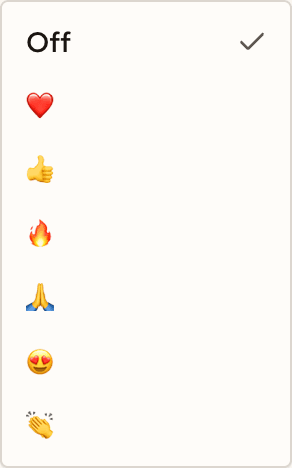
Choose an emoji
Open the list and choose one emoji.
Choose Off to stop the reaction.
Step 3
Save the channel
Press Update. The bot adds this reaction to each new post that it publishes.
An album gets the reaction on its first message.

Example
A first reaction
A channel wants readers to react with one tap.
- Channel
- Weekend Market
- Reaction
- 🔥
- When
- On each new post, right after it goes out
Common questions
Which plan do I need?
Every plan. The setting is off until you choose an emoji.
Does the bot's reaction count?
Yes. The reaction of the bot is part of the reaction total of the post.
Why does a post have no reaction?
Telegram refuses an emoji that the channel does not allow. The post still goes out. Choose an emoji that the channel allows in Telegram.
Ready to start?
Create an account and connect your channel.