Guide · 3 steps
See why an automatic post did not go out
The Deliveries tab of an automation task shows where its posts went and why a delivery failed.
Step 1
Open Deliveries
Open Automation → Tasks, open a task and press Deliveries.
The figures cover the newest 100 deliveries to each channel of the task.

Step 2
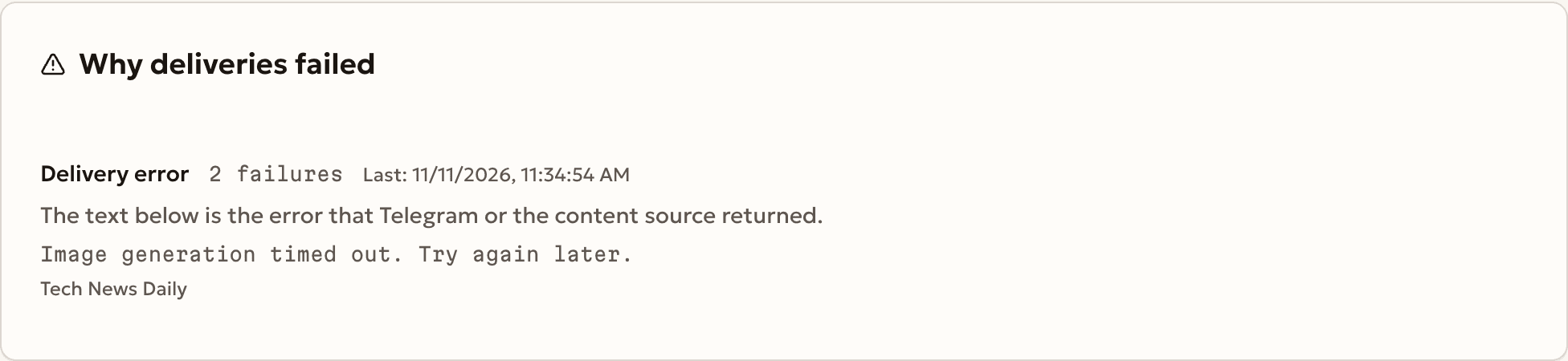
Read why deliveries failed
Under Why deliveries failed, each cause shows its count, the newest error text and the channels it hit.
For a known cause, such as lost bot access or a reached plan limit, a link opens the fix.
Step 3
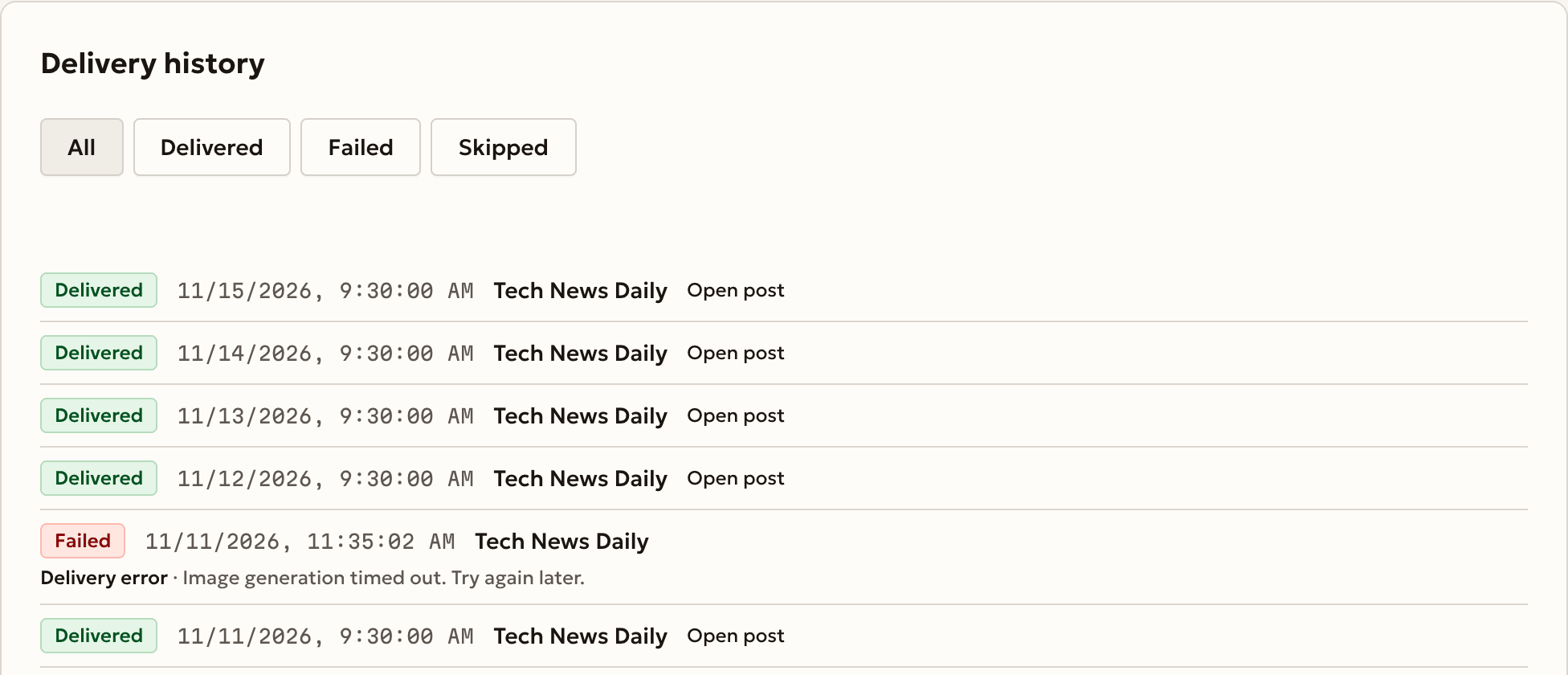
Filter the history
Under Delivery history, choose a status, such as Failed, to see only those deliveries.
The list shows the newest 50 deliveries. A delivered row links to its post.
Example
A news task
A news task failed twice in two weeks.
- Cause
- Delivery error
- Error text
- Image generation timed out
- Fix
- Wait for the next run
Common questions
Which plan do I need?
The tab has no plan limit of its own. Every task page has it, and automations need Solo or higher.
What is a skipped delivery?
The daily post limit of the automation stopped it. A skipped delivery does not count in the success rate.
Does the tab send a failed post again?
No. Fix the cause. The next run of the task then delivers as usual.
Ready to start?
Create an account and connect your channel.