Guide · 4 steps
See who administers your channels
Channel administrators lists the people and bots that administer each of your channels in Telegram, and the rights each one has. The page only shows the list. You change administrators in Telegram.
Step 1
Open the page
Open Channels and press Channel administrators.
The page reads the list from Telegram each time you open it.

Step 2
Find your level
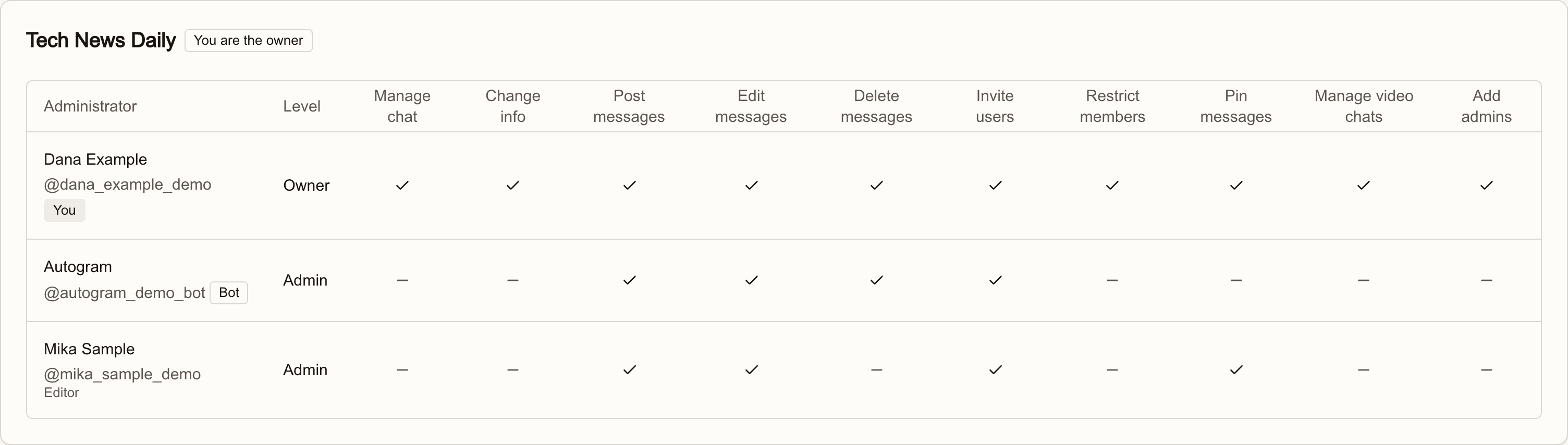
Find your channel. The badge next to its name shows your level, and You marks your own row.
A paused channel has a Paused badge.

Step 3
Read the rights
Read the Administrator and Level columns. A tick means the administrator has the right. A dash means the administrator does not.
On a narrow screen, scroll the table sideways.
Step 4
Fix a channel with no list
When a channel shows a message instead of a table, add the Autogram bot as an administrator in Telegram. Then press Refresh.
If Telegram did not answer, press Refresh to try again.

Example
One channel, one editor
- Channel
- Tech News Daily
- Administrator
- Mika Sample
- Level
- Editor
- Post messages
- Granted
- Delete messages
- Not granted
Common questions
Can I change an administrator here?
No. The page only shows the list. Add or remove an administrator in Telegram, then press Refresh.
How current is the list?
Autogram reads it from Telegram each time you open the page or press Refresh.
Who can see this page?
Only you. Other users do not see your channels.
Ready to start?
Create an account and connect your channel.