Guide · 4 steps
Plan a week of posts
The calendar shows your schedule. Fill free days and move posts with a click.
Step 1
Open the calendar
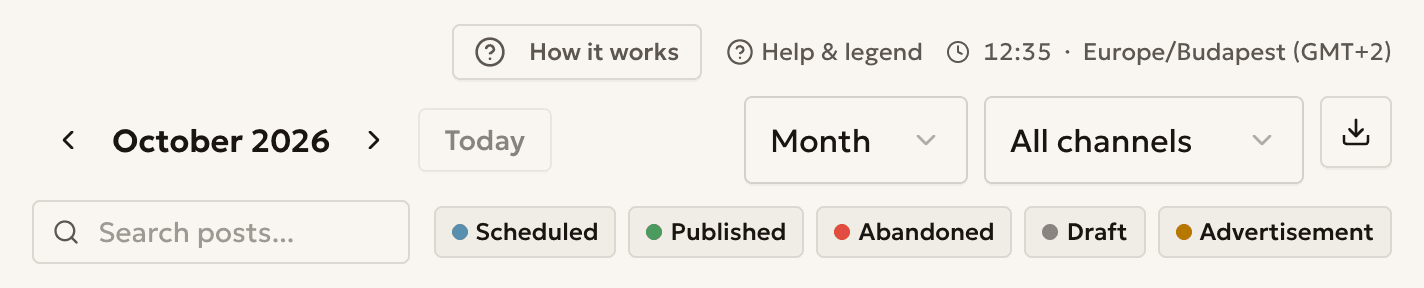
Open Posts → Calendar, then switch the view: Month, Week, Day or Agenda.
Press Today to jump back to the current day.
Step 2
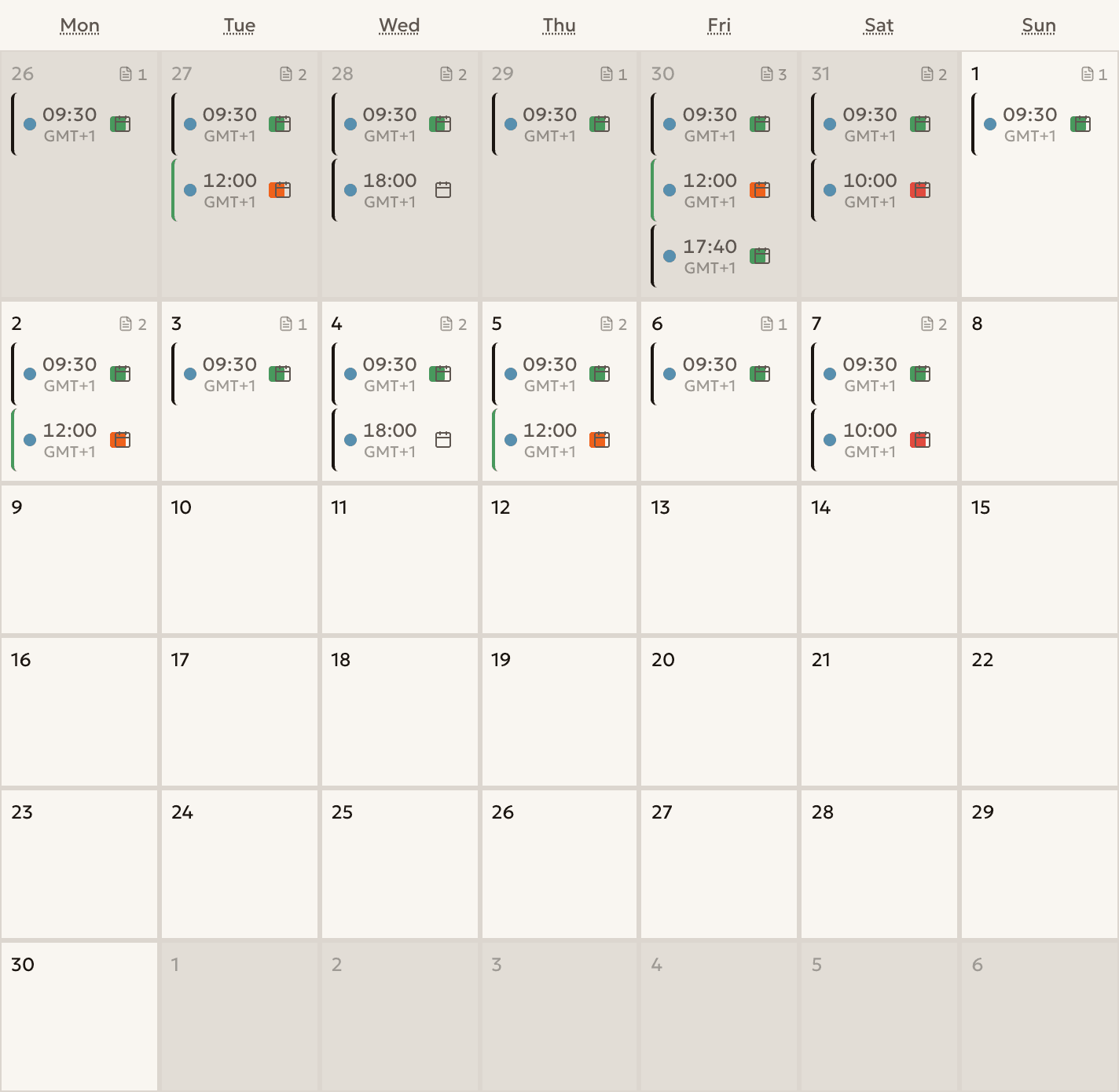
Pick a free day
Click a day that has no posts.
Click a post card to edit that post.
Step 3
Write and schedule
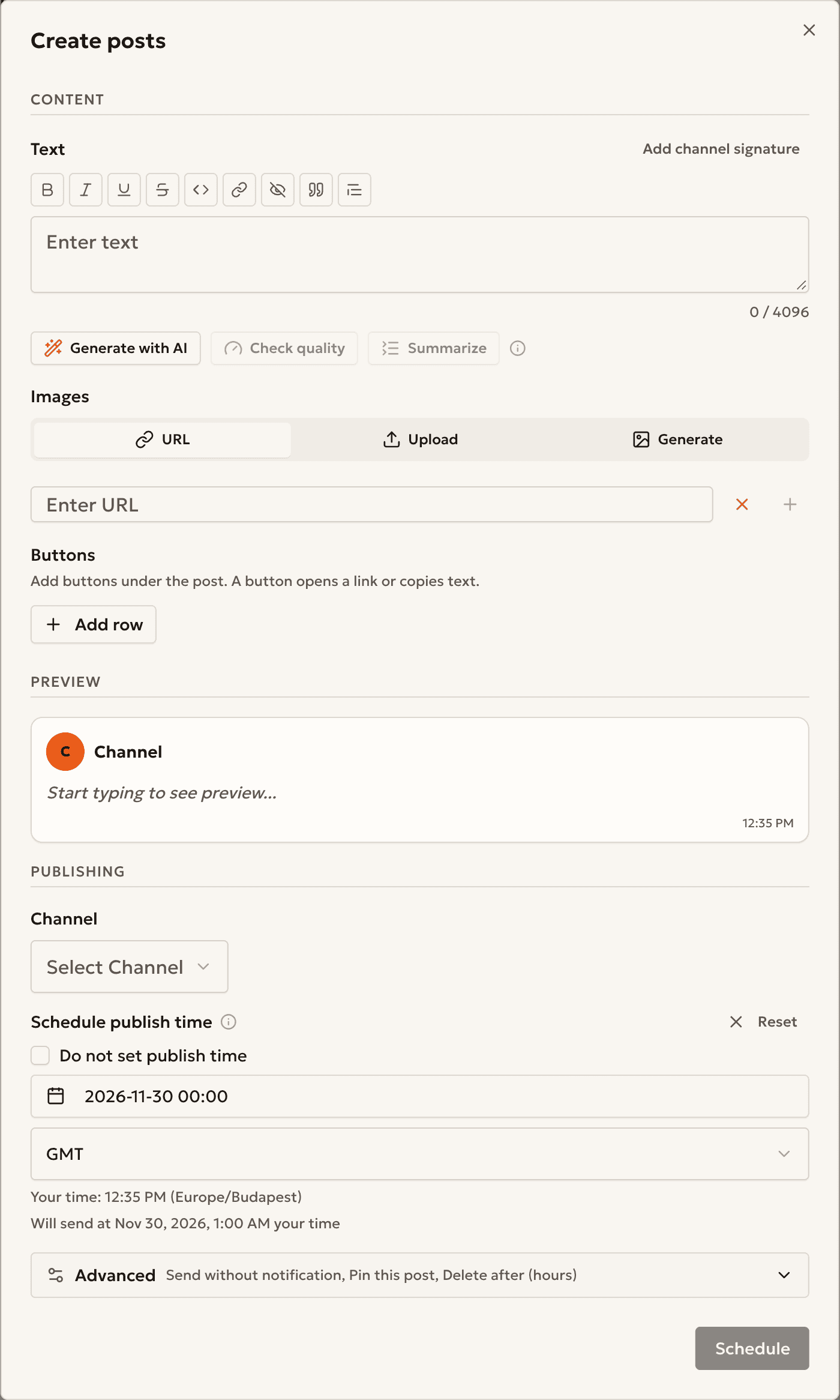
The date is already filled in. Write the post, choose a channel and press Schedule.
Step 4
Move a post
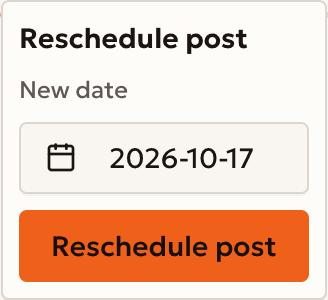
Press the calendar icon on a post, pick a New date and press Reschedule post.
You can also drag a post to another day.
Example
A five-post week
Tech Digest (@techdigest_demo) posts once a day, Monday to Friday, at 09:00.
- Mon
- 09:00 · Product news
- Tue
- 09:00 · Tip of the day
- Wed
- 09:00 · Case study
- Thu
- 09:00 · Poll
- Fri
- 09:00 · Week recap
Something unclear?
Which time zone do the times use?
The calendar shows times in your own time zone. The post window shows the time in your zone too.
What does the warning icon mean?
Two posts in one channel are less than 5 minutes apart. Move one of them.
Do automated posts show here?
Yes. Open Help & legend to see what each color and icon means.
Ready to start?
Create an account and connect your channel.