Guide · 3 steps
Add a delayed reply under each post
An automation can reply under each post it publishes. Each reply waits the time you set, and you can add up to 5.
Step 1
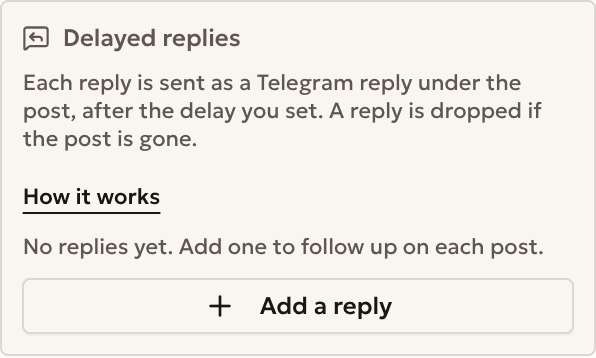
Open the replies box
Open Tasks, open a task, choose the Configure tab and find Delayed replies on a channel.
Delayed replies need the Solo plan or higher.
Step 2
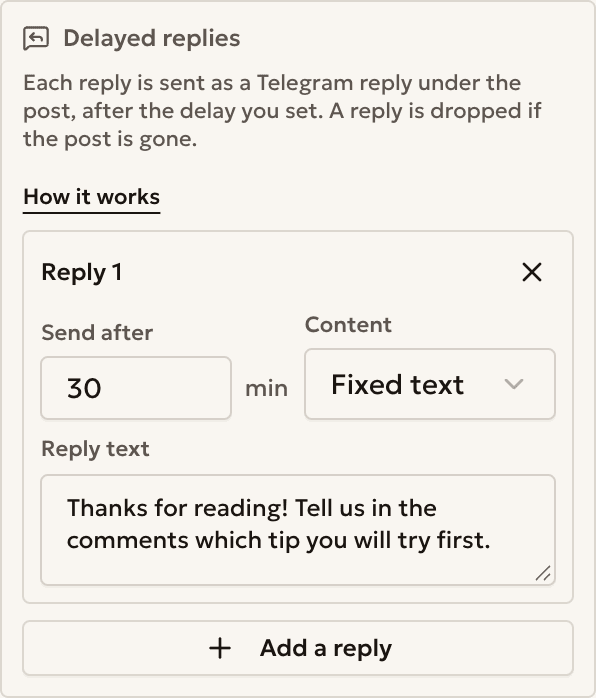
Add a reply with a fixed text
Press Add a reply, set Send after in minutes and write the text.
Choose from 1 to 1,440 minutes. The text can have up to 1,000 characters.
Step 3 · Optional
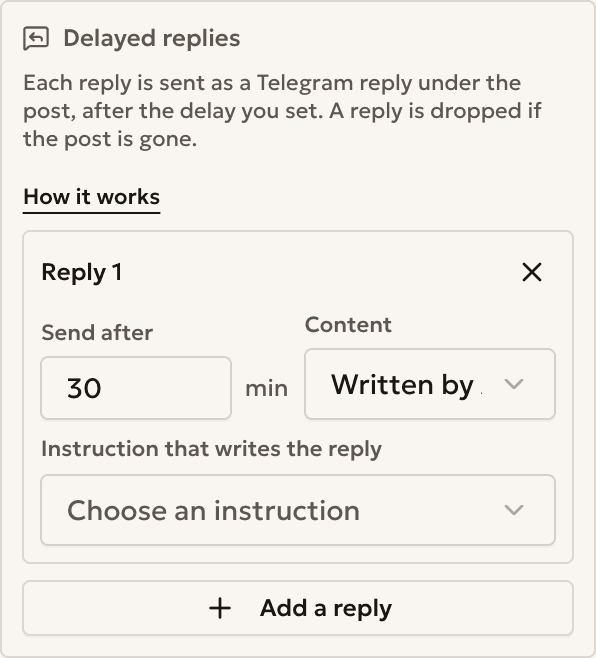
Let AI write the reply
Change Content to Written by AI, choose the instruction that writes the reply, then press Save.
An AI reply uses your AI credits. A channel can have up to 5 replies.
Example
A thank-you reply
A tech channel publishes a tip each morning and adds one reply.
- Delay
- 30 minutes
- Content
- Fixed text
- Text
- Thanks for reading! Tell us in the comments which tip you will try first.
Common questions
Which plan do I need?
Solo or higher. On Free the Add button is off and a note names the plan.
When does a reply go out?
After the post is published, once the delay has passed. Autogram drops the reply when the post is gone, when the channel is paused or when the plan no longer allows replies. Autogram does not retry a reply that fails.
Does Autogram read the answers?
No. Replies only go out. Autogram does not read answers and does not change a reply because of an answer.
Ready to start?
Create an account and connect your channel.