Guide · 4 steps
Add images to AI posts
Reference pictures guide the images the AI makes. Add them to your library. Then attach them to an instruction.
Step 1
Open the library
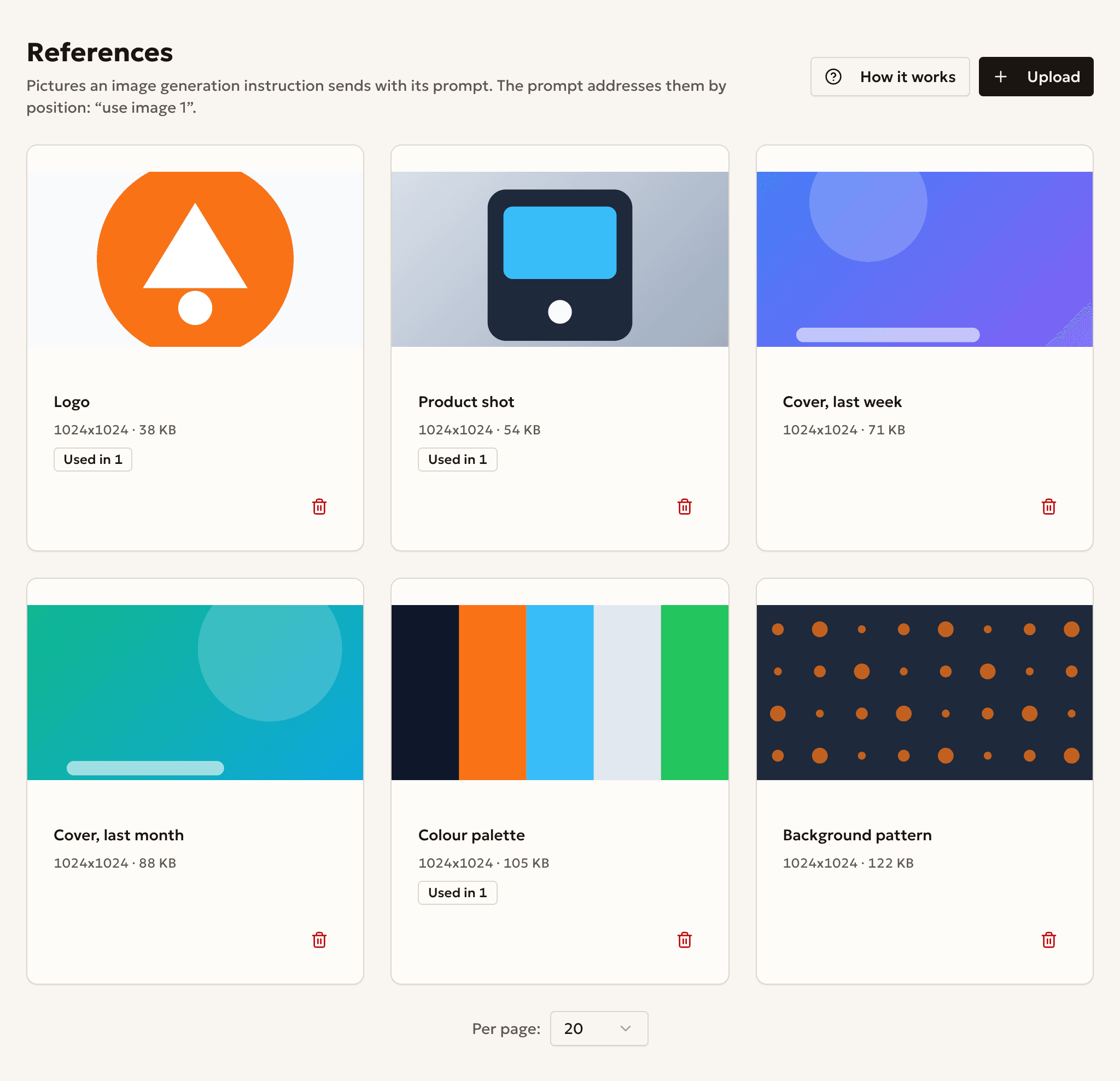
Open References. Your pictures are listed here.
Each card shows how many instructions use the picture.
Step 2 · Optional
Upload pictures
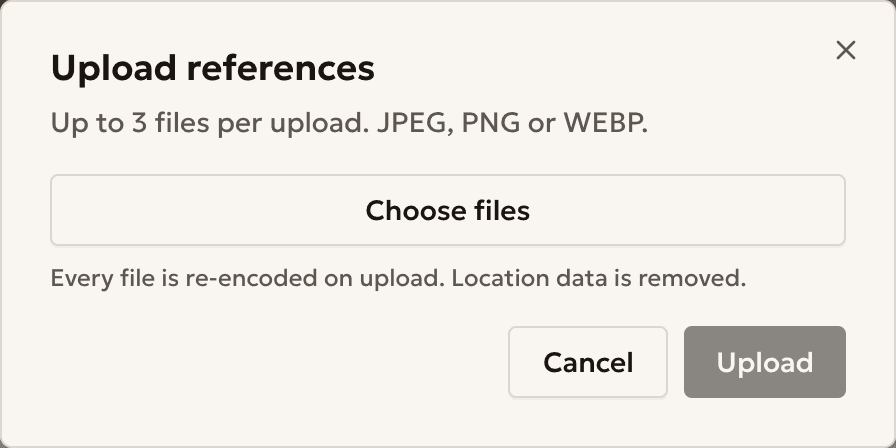
Press Upload, then Choose files.
Use JPEG, PNG or WEBP files.
Step 3
Attach pictures to an instruction
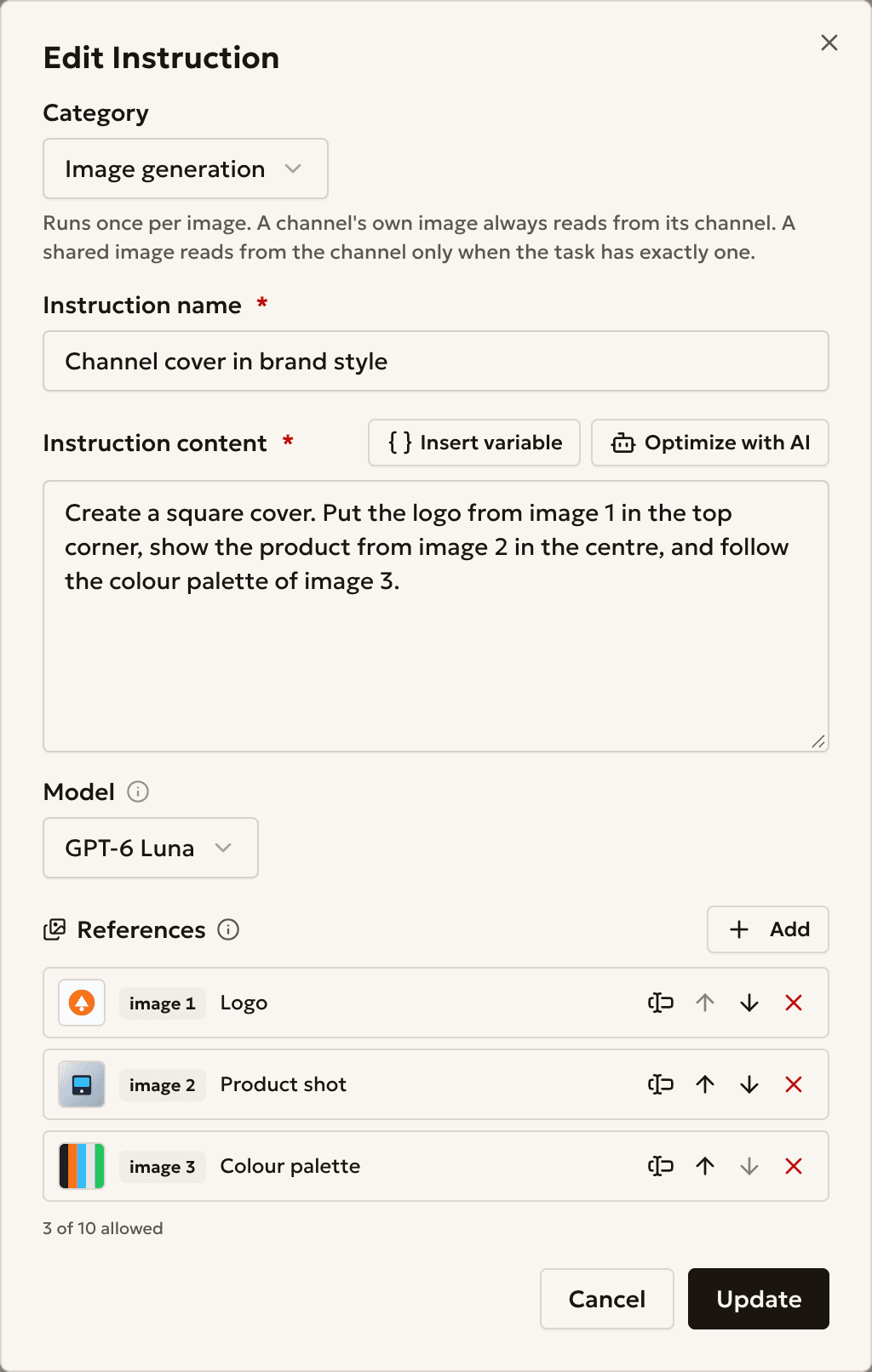
In Instructions, press Edit on an Image generation instruction. Its pictures are under References.
Write use image 1 in the text to point at the first picture.
Step 4
Pick from the library
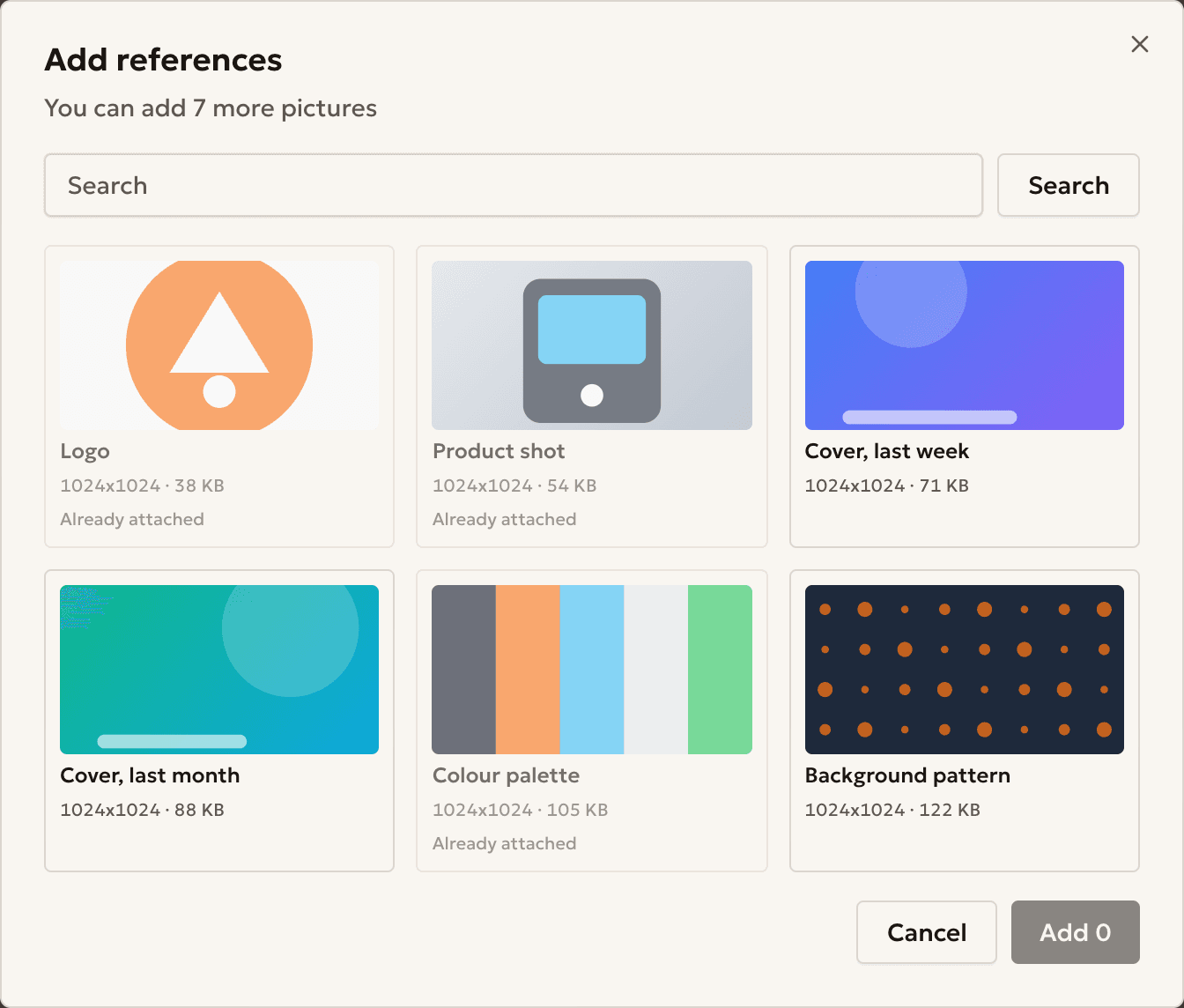
Press Add, then choose pictures in the Add references window.
A picture marked Already attached is already in the set.
Example
A food channel
- Channel
- @kyivfoodguide_demo
- Pictures
- Three dish photos: pasta, soup, dessert
- Instruction
- use image 1 as the style
- Result
- The AI draws a new dish in the style of the pasta photo.
Common questions
I cannot upload pictures
References need a paid plan. The page shows See plans when your plan has none.
The Add button is grey
The model takes a limited number of pictures. Remove one, or choose another model.
I cannot delete a picture
An instruction still uses it. Remove it from that instruction first.
Ready to start?
Create an account and connect your channel.