Guide · 4 steps
Check posts before they go out
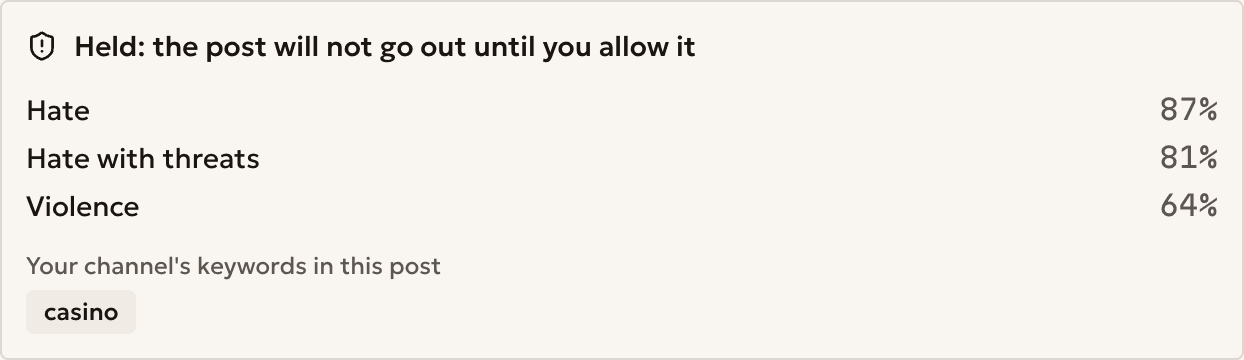
Autogram checks each post before it goes out. Two categories hold the post until you allow it. Other flags and the keywords of your channel only warn.
Step 1
Open the Moderation tab
Open Posts, press Score on a post and open the Moderation tab.
The tab is on every plan.

Step 2
Read the check
The check shows the flagged categories with their scores and the keywords of your channel that the post contains. Press Check now to check the post again.
Autogram also checks each post when it sends it.
Step 3
Allow a held post
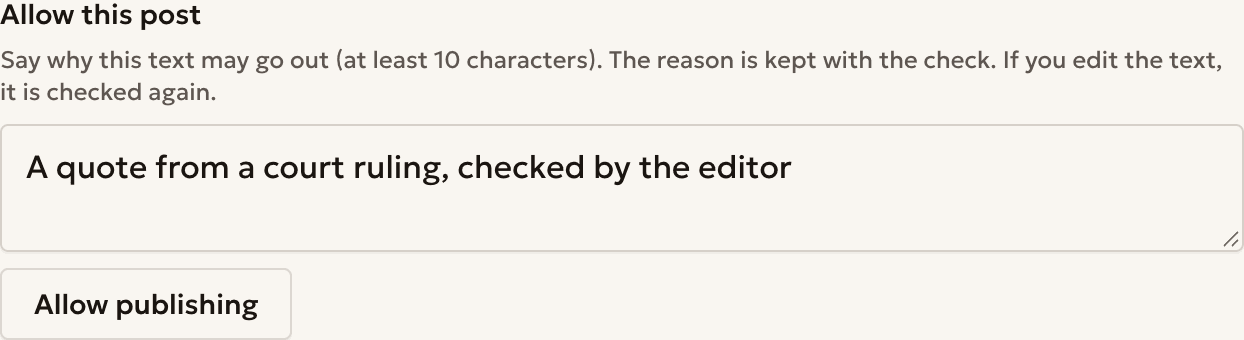
A held post shows Allow this post. Write why the text can go out and press Allow publishing.
The reason needs at least 10 characters. When you edit the text, Autogram checks it again.
Step 4 · Optional
Add the keywords of your channel
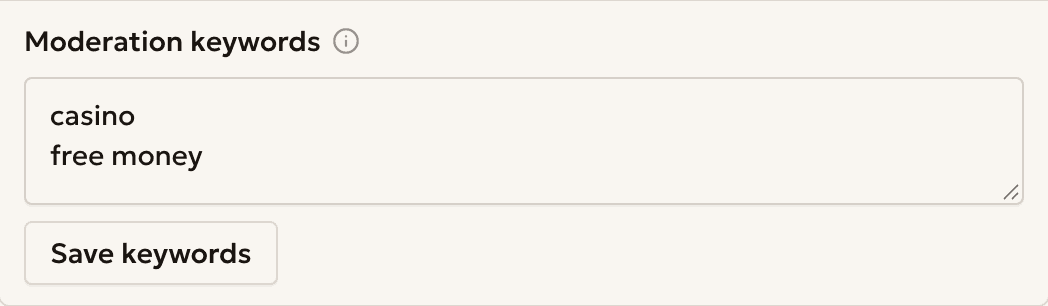
Open Channels, press Edit on a channel and open the Publishing tab. Under Moderation keywords, write one word or phrase per line and press Save keywords.
A keyword only warns. The post still goes out.
Example
A news channel
A city news channel quotes a court ruling about a violent crime.
- Check
- Held: hate with threats
- Reason
- A quote from a court ruling, checked by the editor
- Result
- The owner publishes the post
Common questions
Which plan do I need?
None. Moderation is on every plan.
What happens to a scheduled post that is held?
Autogram does not send it and sends you a notification. The notification opens the post, and a notice on the post opens the check.
Does an allowed post stay allowed after an edit?
No. An edit changes the text, so Autogram checks the new text again.
Ready to start?
Create an account and connect your channel.