Guide · 4 steps
Translate a post
Autogram names the language of your text, translates it with AI and keeps the old text one click away.
Step 1
Open the translation bar
Open Posts, press Create and open Translate this post.
Translation needs the Solo plan or higher.

Step 2
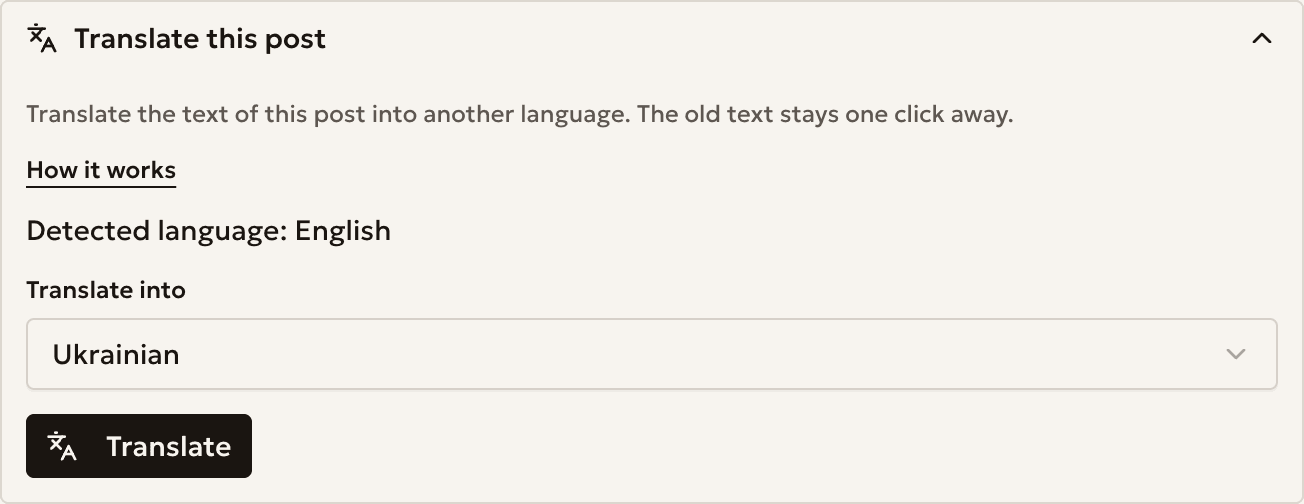
Choose the language
Write the text. Autogram names its language. Choose the language in Translate into.
The detected language is only a hint. It never blocks a translation.
Step 3
Translate and check
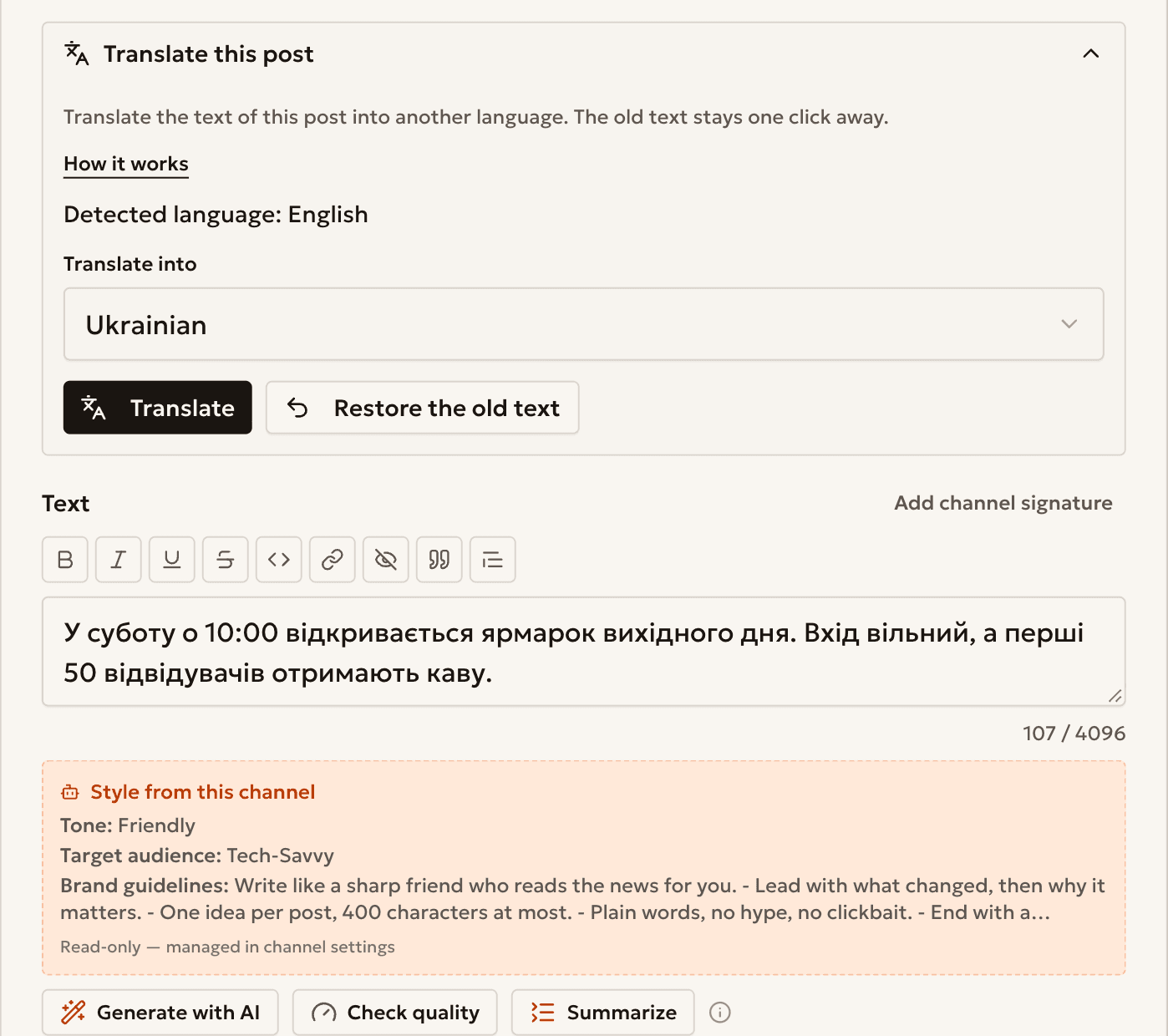
Press Translate. The translation replaces the text. Press Restore the old text to go back.
Each translation uses your AI credits. Read the new text before you publish.
Step 4 · Optional
Copy a post with a translation
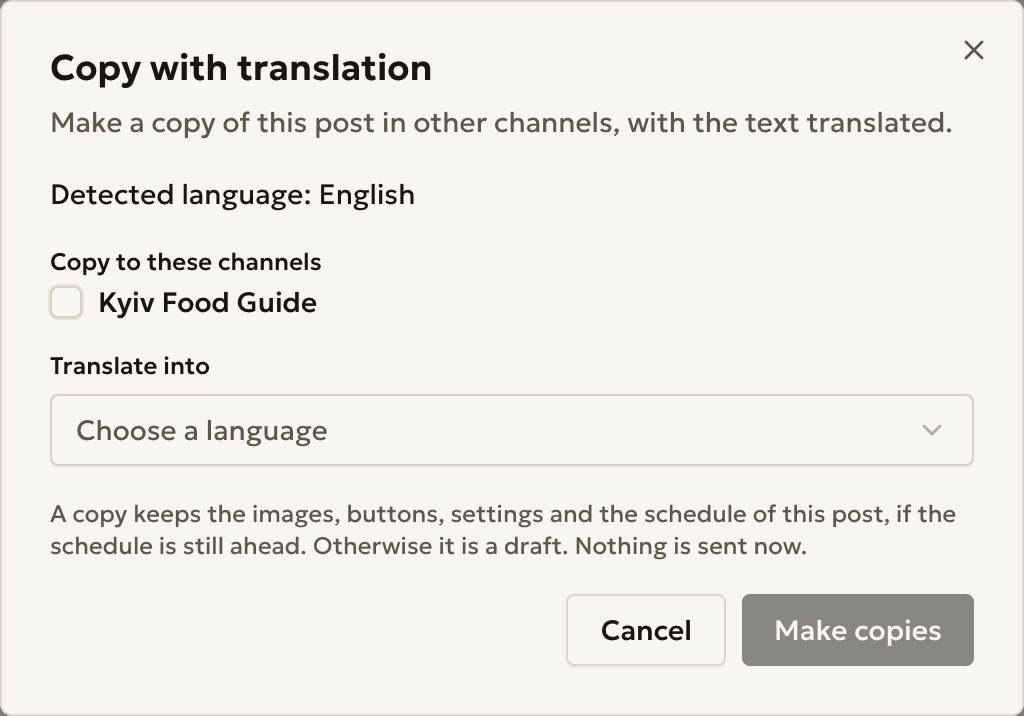
Open the menu of a post in the list and choose Copy with translation. Choose the channels and the languages.
A copy is a draft, or a scheduled post when the time of the original is still ahead.
Example
A market announcement
You write the announcement in Ukrainian and send an English version to a second channel.
- Original language
- Ukrainian
- Translate into
- English
- Result
- The weekend market opens on Saturday at 10:00. Entry is free, and the first 50 visitors get a coffee.
Common questions
Which plan do I need?
Solo or higher. Language detection is free on every plan.
How many copies can I make at once?
Up to 10 channels and 3 languages in one request. Each copy counts against your monthly post limit.
Which posts can I not copy this way?
A poll, a Live Photo, an audio post, a rich message and an ad.
Ready to start?
Create an account and connect your channel.