Guide · 4 steps
See who joins and leaves your channel
Autogram records each join and leave of your channel. The Subscribers tab shows who joined or left, through which invite link, and when.
Step 1
Open the Subscribers tab
Open the statistics of your channel and choose the Subscribers tab.
The tab is on the Pro plan and up.

Step 2
Read the joins and leaves
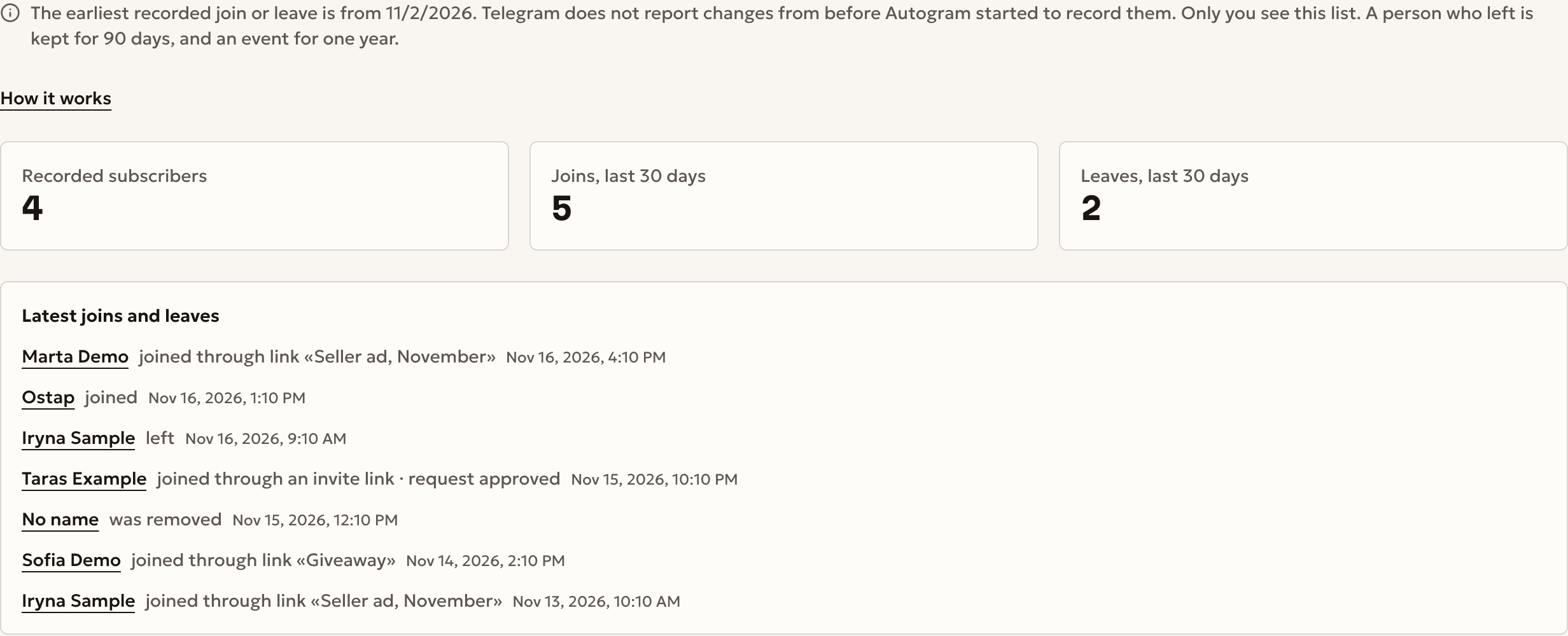
Read Recorded subscribers, Joins, last 30 days and Leaves, last 30 days. Under them, Latest joins and leaves shows each person, the invite link and the time.
Autogram records joins and leaves from the day it starts to record them. Telegram does not report earlier ones.
Step 3
Find a subscriber
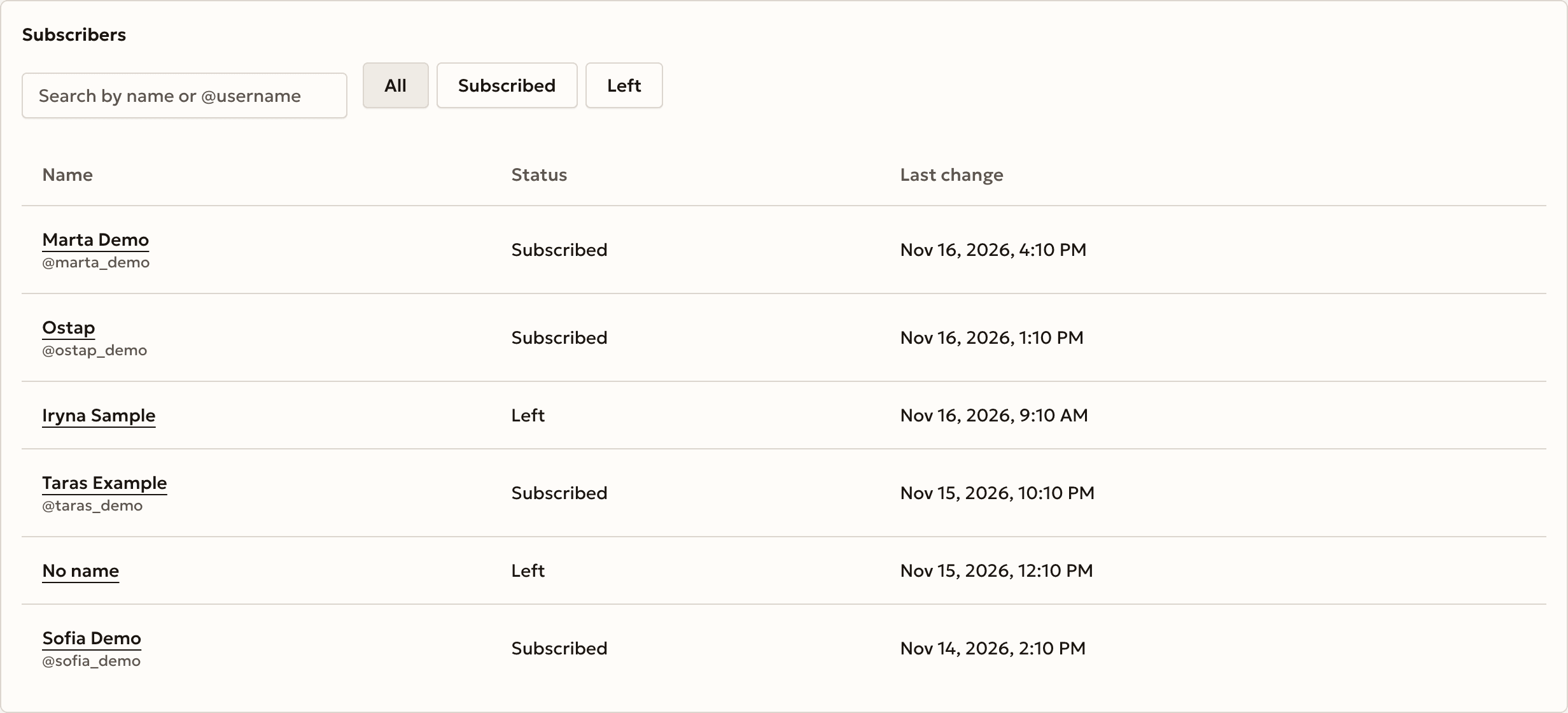
In the Subscribers list, type a name or @username in the search field, or choose All, Subscribed or Left.
A person who left stays in the list for 90 days.
Step 4
Open a profile
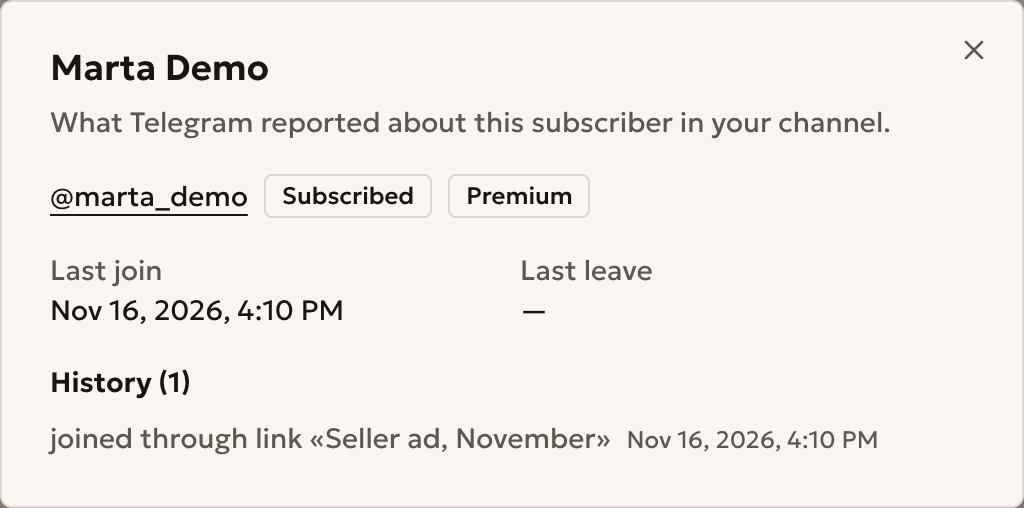
Press a name. The profile shows Last join, Last leave and the full history of the person.
Only you see this list. Autogram keeps an event for one year.
Example
A food guide channel
The owner of a food guide channel opens the Subscribers tab after one week.
- Joins, last 30 days
- 24
- Leaves, last 30 days
- 5
- Invite link of the latest join
- Seller ad, November
Common questions
Which plan do I need?
The Subscribers tab is on the Pro plan and up.
Why is there no earlier history?
Telegram reports a join or a leave only when it happens. Autogram records them from the day it starts to record them.
Does it show which invite link a person used?
Yes, when the person joined through an invite link. A link with a name shows its name.
Ready to start?
Create an account and connect your channel.