Guide · 3 steps
Write a post from a voice recording
Say your post out loud and upload the recording. Autogram turns it into text and writes a draft.
Step 1
Open the new post window
Open Posts and press Create.
The recording button is on the Solo plan and higher.

Step 2
Choose a recording
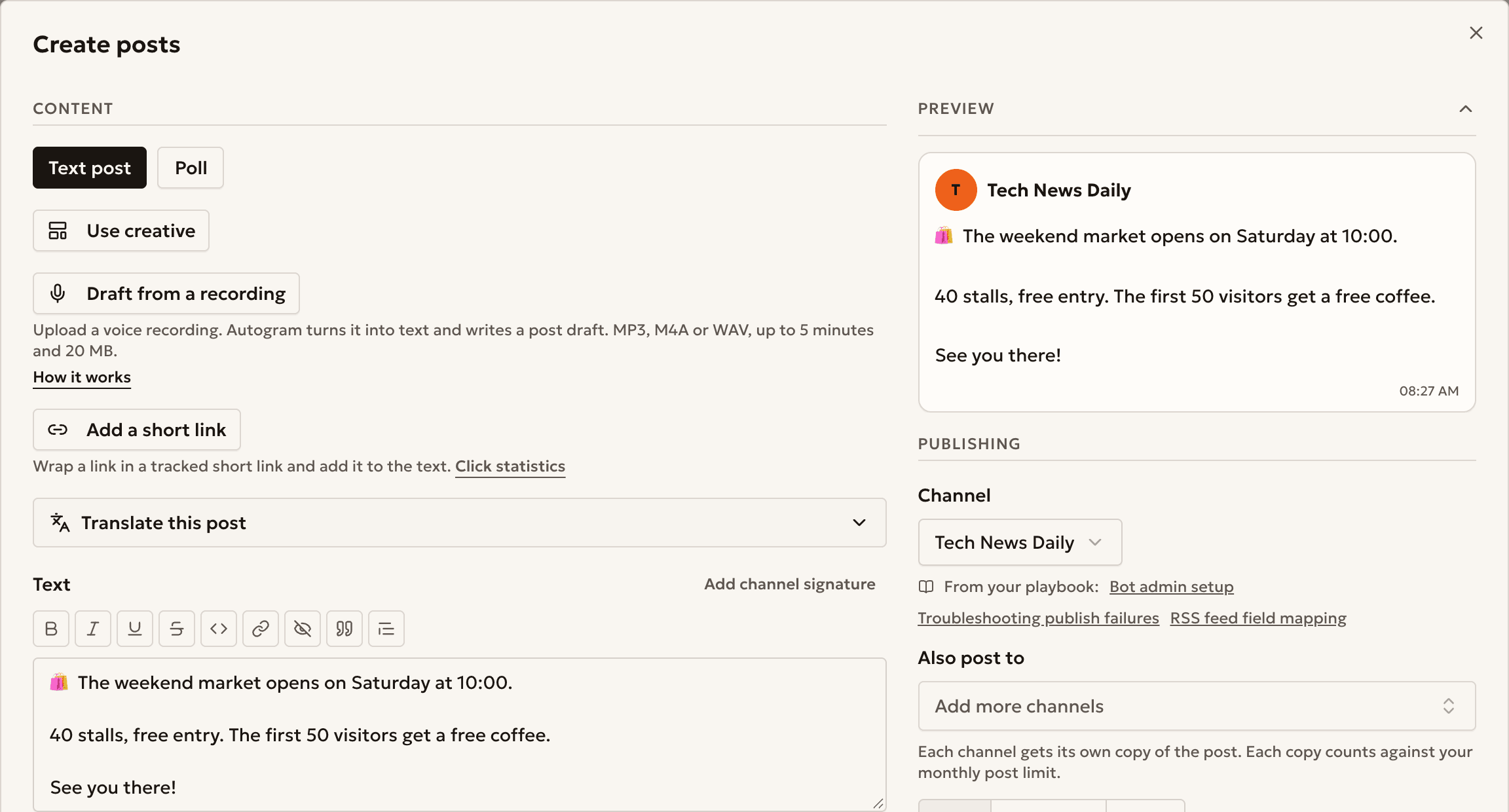
Press Draft from a recording and choose an MP3, M4A or WAV file.
The file can be up to 5 minutes and 20 MB. Autogram does not keep the recording.

Step 3
Check the draft
Autogram puts the draft in the post text. Read it, edit it, then schedule or publish.
Check names, numbers and dates. AI can make mistakes.
Example
A market announcement
You record 40 seconds about a weekend market.
- Recording
- Weekend market, 40 seconds, MP3
- Draft
- The weekend market opens on Saturday at 10:00. 40 stalls, free entry.
- Next step
- Fix one line, then schedule the post
Common questions
Which plan do I need?
Solo or higher. On Free the button is off and a note names the plan.
Which files work?
MP3, M4A and WAV files, up to 20 MB and 5 minutes. Autogram checks the real length of the audio.
Does Autogram keep my recording?
No. Autogram turns the recording into text and does not store the file.
Does it use AI credits?
Yes. The transcription and the draft use your AI credits.
Ready to start?
Create an account and connect your channel.