Guide · 4 steps
Read your channel's growth
Channel statistics show how the channel grows and where new subscribers come from.
Step 1
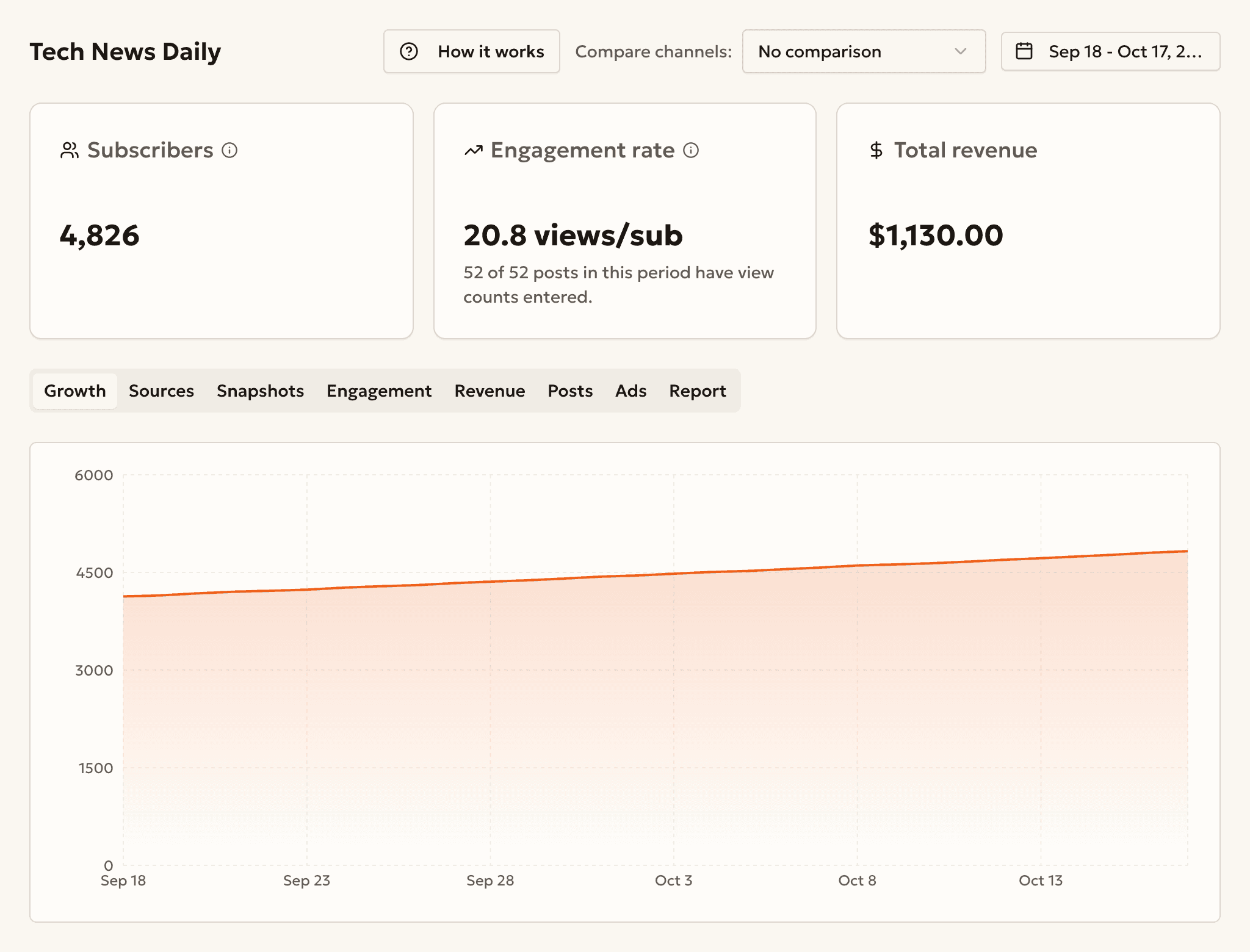
See how the channel grows
Open Channel Stats and choose a channel.
Subscribers and the Growth chart show the trend.
Step 2
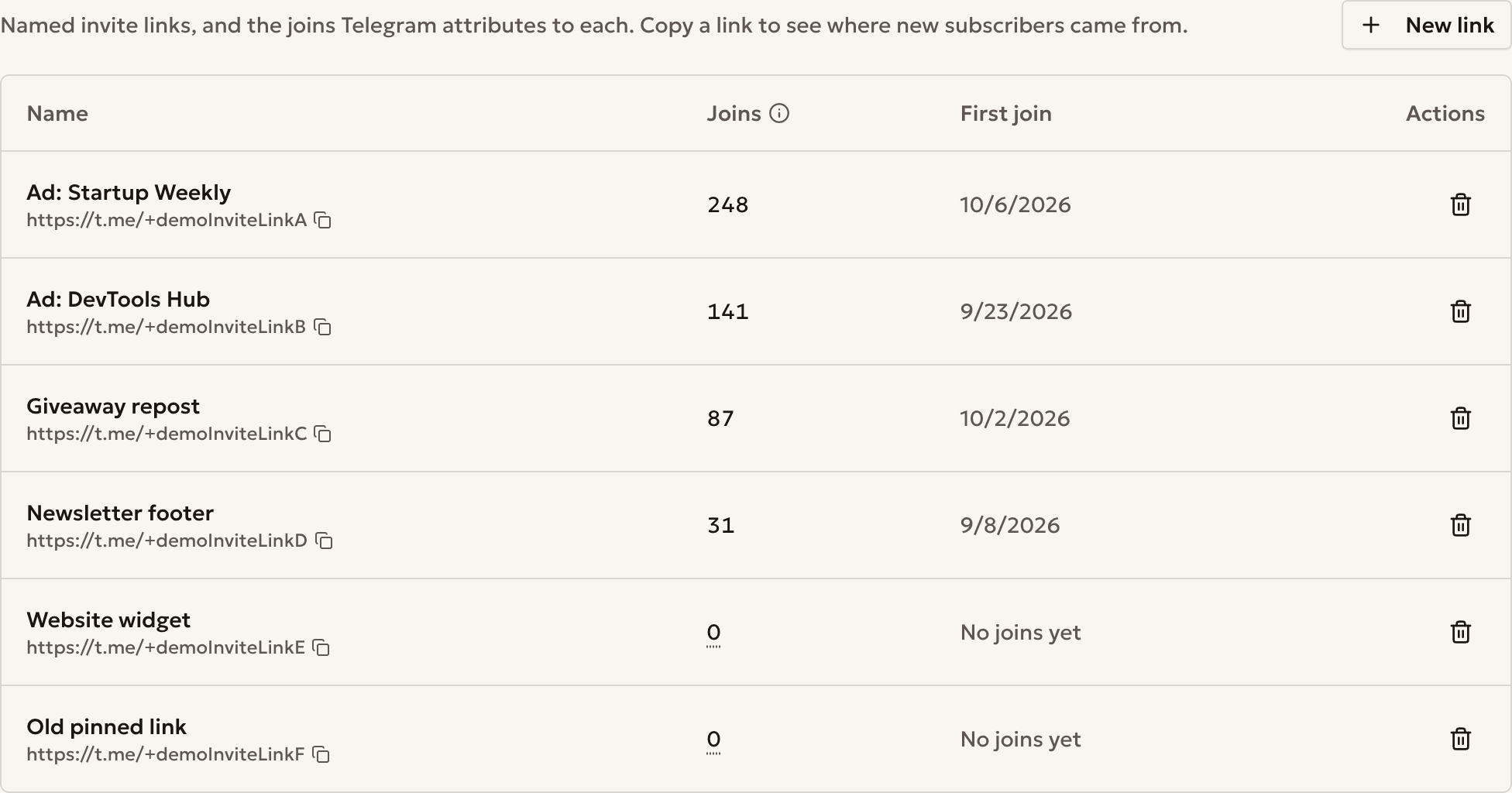
Open the Sources tab
Open the Sources tab to see the joins of each named link.
A link made for an ad appears here too.
Step 3
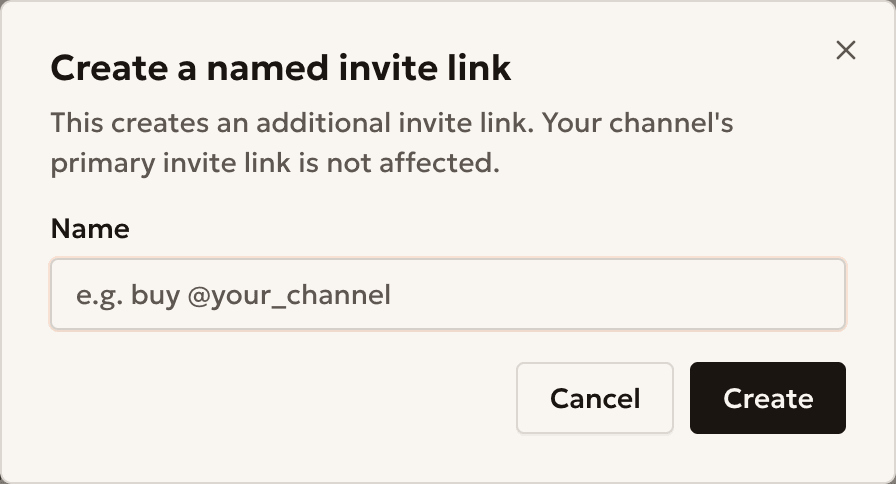
Make a named link
Press New link, type a Name, and press Create.
Make one link for each place where you post it.
Step 4
Copy the link and watch the joins
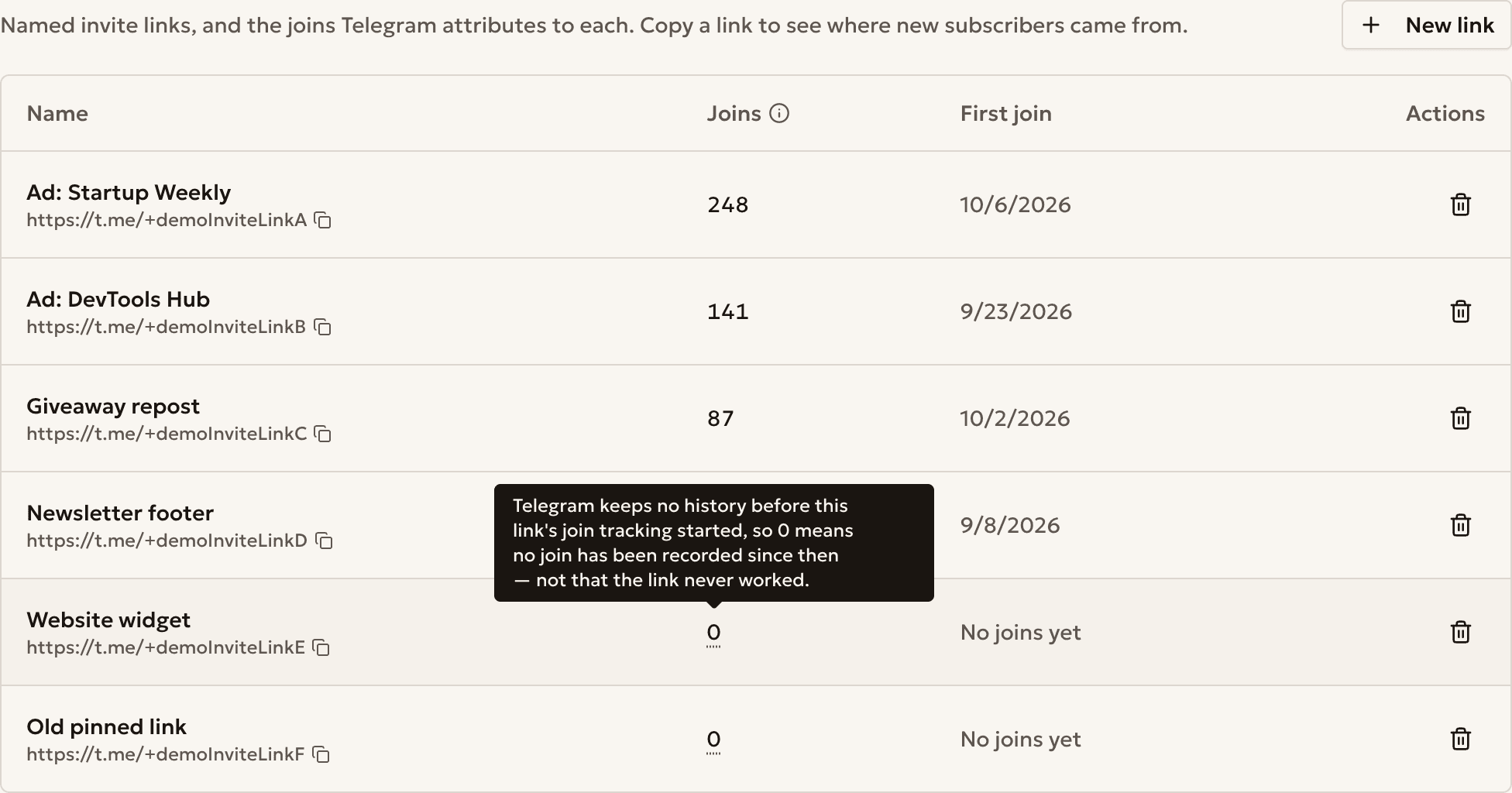
Copy the link with the copy icon, post it, and watch Joins.
Point at a 0 to see what it means.
Example
A channel with three links
Channel @kyivfoodguide_demo. Joins per link:
- bio
- 64
- buy @partner_demo
- 112
- giveaway
- 87
Most joins: buy @partner_demo
Common questions
A link shows 0 joins
Telegram keeps no history before tracking started. A 0 means no join since then, not a broken link.
I removed a link. Does it stop?
No. Removing a link hides it in Autogram only. Revoke it in the Telegram app to stop it.
Where do my ad links go?
A tracking link made in an ad purchase appears here too. Read the ad guide.
Ready to start?
Create an account and connect your channel.