Guide · 4 steps
Make AI posts sound like your channel
Set a tone, an audience and brand rules once. AI follows them when it writes for this channel.
Step 1
Open the channel settings
Open Channels → Internal channels and press Edit on your channel.

Step 2
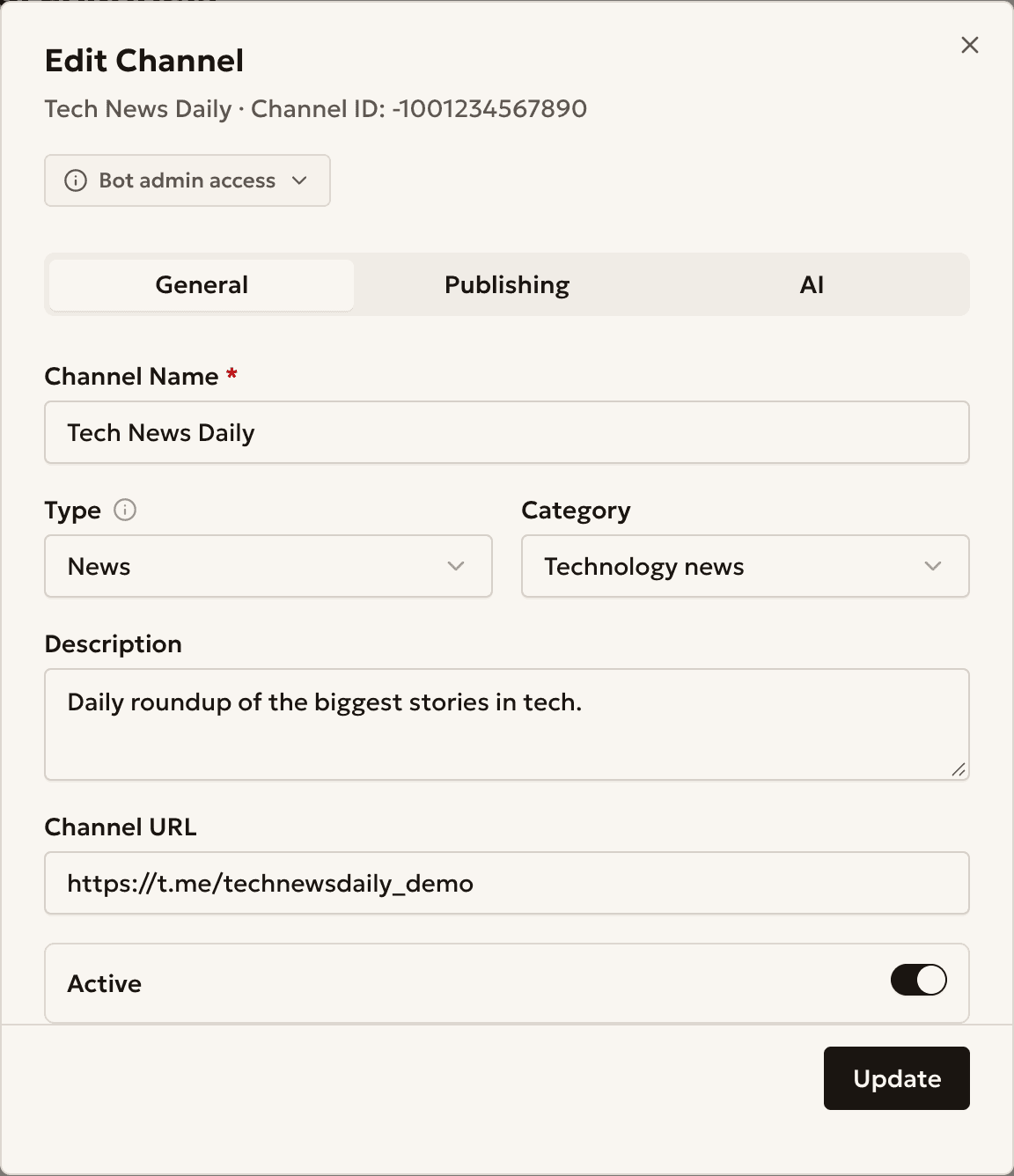
Open the AI tab
In the window, open the AI tab.
Step 3
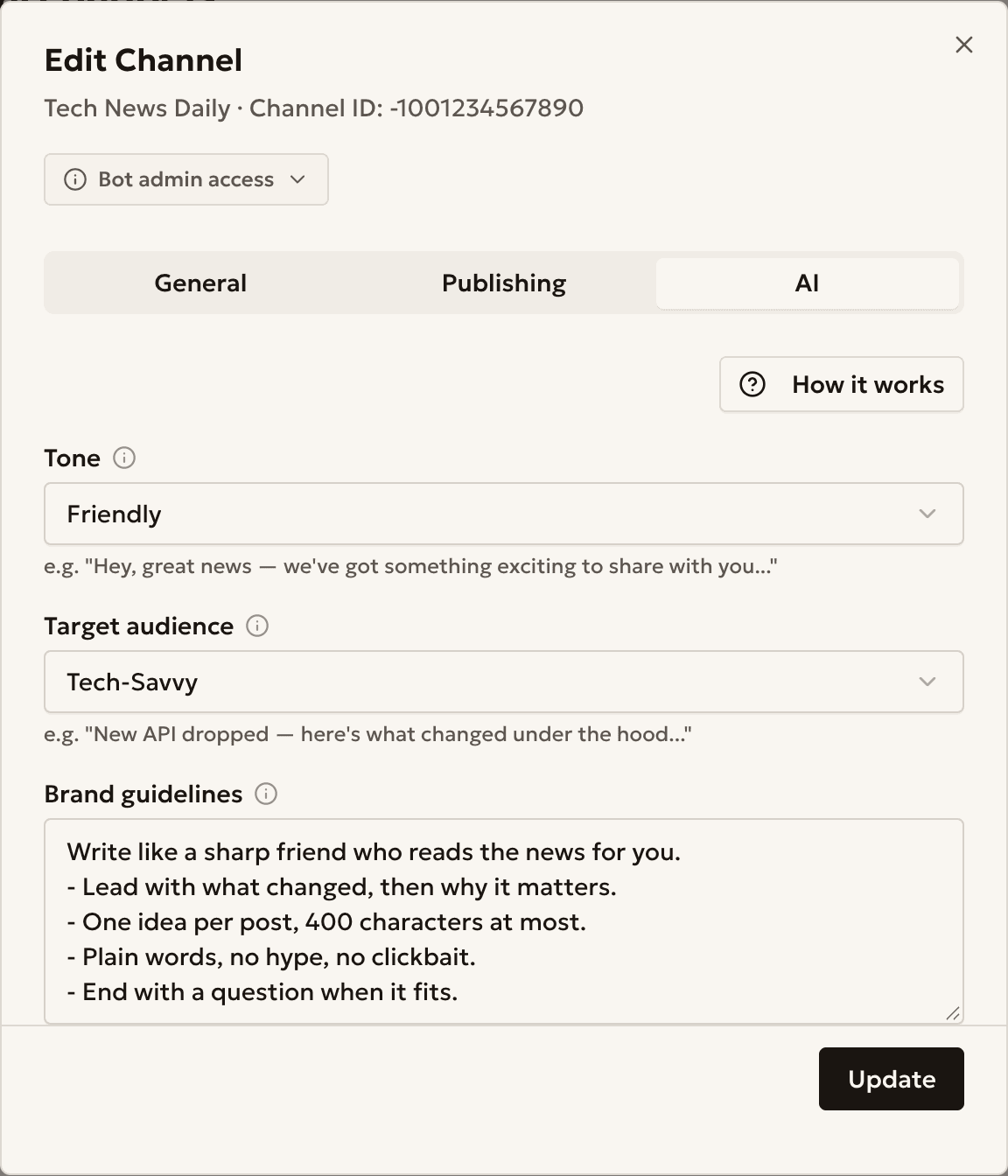
Describe your voice
Fill in Tone, Target audience and Brand guidelines, then press Update.
Under each choice, an example line shows how it sounds.
Step 4 · Optional
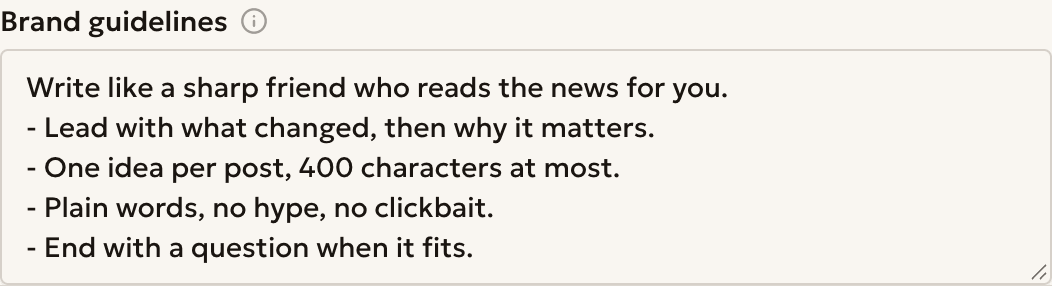
Write short rules
In Brand guidelines, write one rule on each line.
Say what to do, not only what to avoid.
Example
A crypto news channel
Block Brief (@blockbrief_demo) posts daily crypto news for readers who know the market.
- Tone
- Authoritative
- Target audience
- Tech-Savvy
- Brand guidelines
- Name the source. No price predictions. No hype words.
Something unclear?
Do my automations use the profile?
AI drafts that you start by hand do. For an automation that posts to one channel, add {{channel_tone}}, {{channel_audience}} or {{channel_brand_guidelines}} to its AI instruction. See the first automation guide.
Can I leave a field empty?
Yes. Choose Not set to use no preset.
Ready to start?
Create an account and connect your channel.