Guide · 4 steps
Connect the bot to your channel
Autogram posts to your channel through a bot. Make the bot an admin of your channel. Then connect the channel in Autogram.
Step 1
Open the connect window
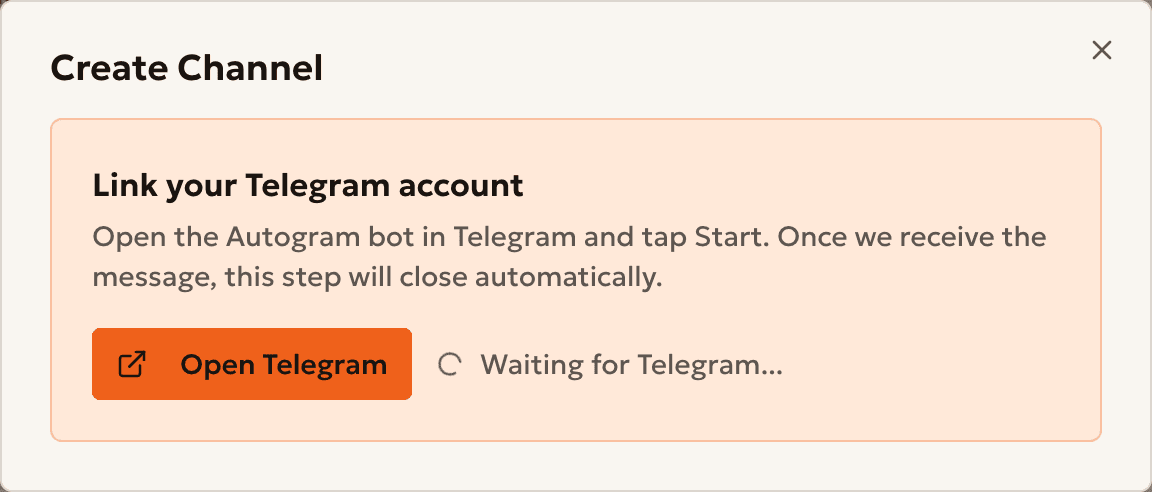
Open Channels → Internal channels and press Create. Autogram asks you to Link your Telegram account.
Press Open Telegram and tap Start. The window moves on by itself.
Step 2
Add the bot as an admin
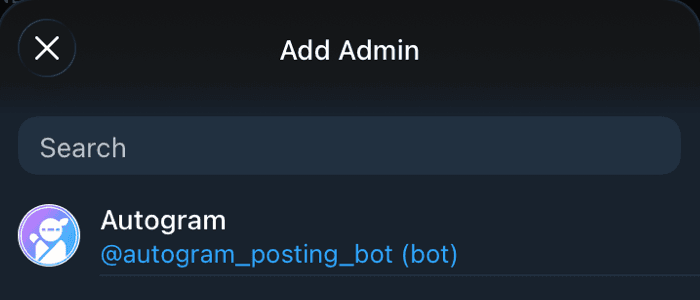
In Telegram, open your channel and add @autogram_posting_bot as an administrator.
Keep all three rights on: post messages, edit messages, and delete messages.
No channel yet? Create one in Telegram first.
Step 3
Connect the channel
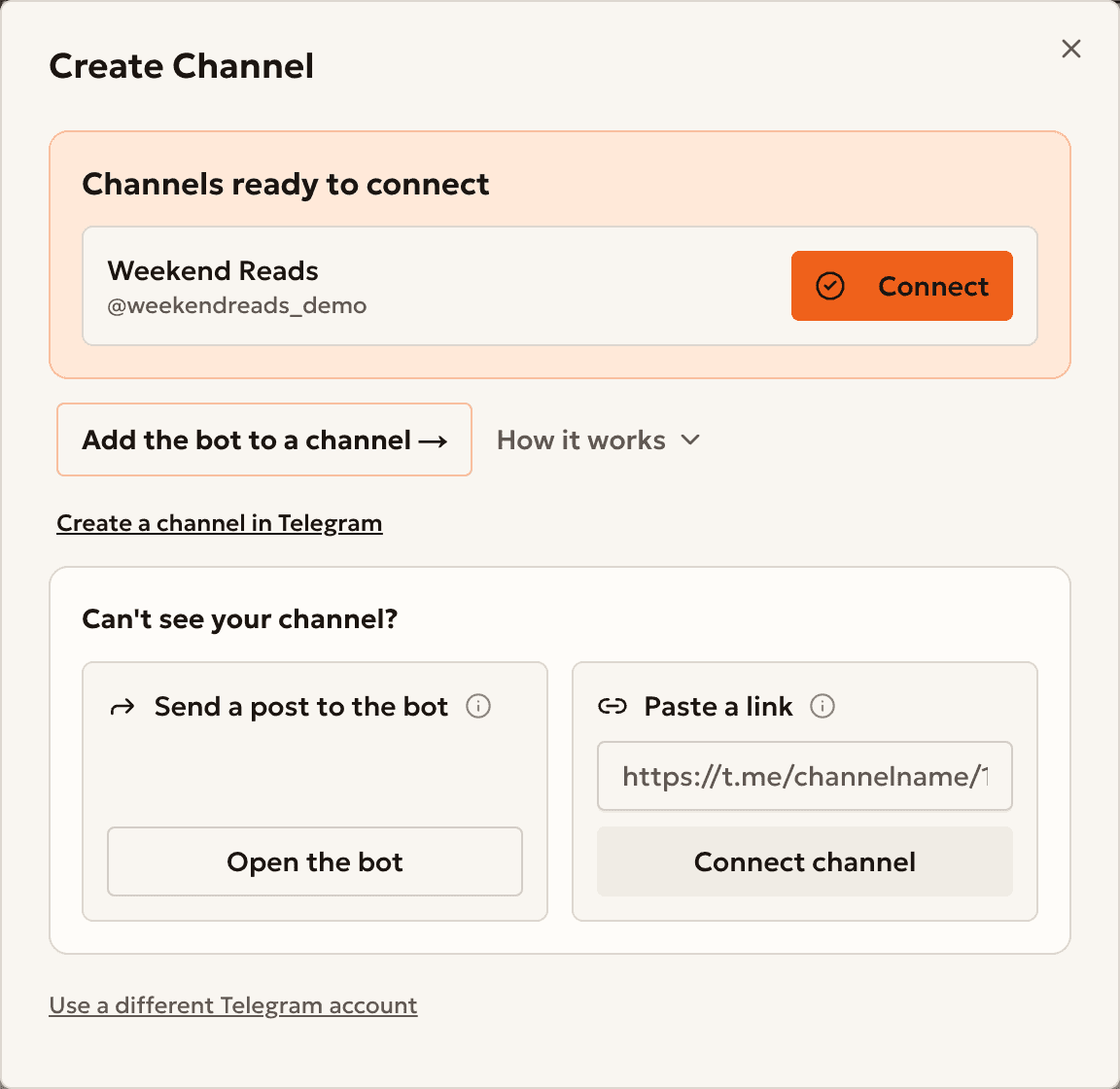
Back in Autogram, find your channel under Channels ready to connect and press Connect.
Not in the list? Check step 2 and read the questions below.
Step 4
Find the channel in your list
The channel is now in your Channels list. Autogram can post to it.
Connect your channel and start autoposting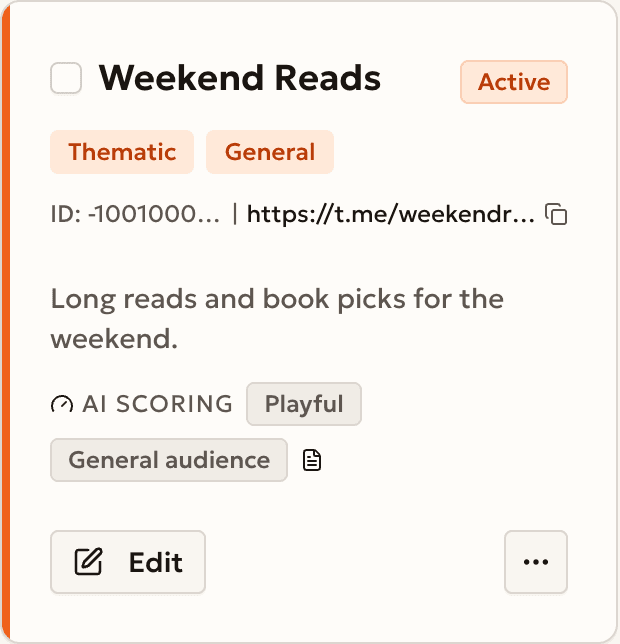
Something went wrong?
My channel is not in the list
Check that the bot is an admin (step 2). Then, under Can't see your channel?, use Send a post to the bot or Paste a link.
Add the Autogram bot as an admin of this Telegram channel, then retry.
Repeat step 2 and keep all three rights on.
Only Telegram admins of this channel can connect it to Autogram.
Link the Telegram account that admins the channel. In the connect window, press Use a different Telegram account.
Still stuck?
Open Support → Submit request, or write to support@autogram.ninja.
Ready to start?
Create an account and connect your channel.